RockTerm ships with 110+ features across connectivity, file transfer, scripting, session management, logging, security, and built-in network tools. Everything below is shipping today.
Jump to section
Connectivity
SSH
Full SSH2 via paramiko with a complete cipher suite (AES-GCM, AES-CTR 128/192/256, Twofish, 3DES). Authentication options include password, public key (RSA, Ed25519, ECDSA), keyboard-interactive, OpenSSH certificates, and SSH agent with forwarding. Host key verification with a graphical key manager for viewing, importing, and exporting fingerprints.
- Port Forwarding — local, remote, and dynamic (SOCKS) tunnels with a visual manager and step-by-step wizard
- Jump Host / Bastion — chain through intermediate SSH servers with ProxyJump support
- Proxy Support — HTTP CONNECT and SOCKS 4/5 proxies, plus ProxyCommand with
%h/%psubstitution - Data Compression — zlib compression levels 1–9 for bandwidth-constrained links
- Modern Key Exchange — DH Group15/17 with SHA-512, selectable in the connection dialog
Telnet
Full Telnet support for legacy network devices, console servers, and equipment that still speaks Telnet. Sessions share the same workspace, connection profiles, scripting, and AI assistance as SSH.
Serial Console
Connect directly to network equipment, embedded systems, and infrastructure gear over RS-232 serial ports. Configure baud rate, data bits, parity, stop bits, and flow control — or let Auto-Detect probe the port across common settings until it finds readable output.
RDP
Remote Desktop Protocol sessions in the same tabbed workspace as your terminal sessions. Managed through the session manager with saved credentials.
Raw Protocol
Minimal-interpretation raw socket connections for protocol troubleshooting and custom TCP services.
Local Shell
Open a native local shell in the same workspace as your remote sessions. Uses ConPTY on Windows and native PTY on Linux/macOS.
Session Management
Session Manager
A dockable panel with a tree view of saved sessions organized into folders. Search and filter by name. Double-click to connect. The dock is lockable to the window edge so it can't be torn off by accident.
Batch Operations
- Multiple Session Editing — select multiple sessions and batch-edit username, port, credential profiles, firewall profiles, keymap, remote command, or move to a different folder
- Active Sessions Manager — view all open sessions with status indicators, filter bar, session count, and bulk disconnect (selected or all)
- Import/Export — back up session configs as JSON, or import from other tools
- CSV/TSV Import Wizard — three-page wizard with auto-delimiter detection, column-to-field mapping, preview table, and bulk import
Profiles & Reuse
- Named Credential Profiles — reusable credential sets with encrypted password storage, mapped to sessions
- Named Firewall Profiles — reusable HTTP CONNECT / SOCKS4 / SOCKS5 proxy configurations, auto-fill on selection
- Snapshots — save and restore named layouts including session configs and window geometry
- Connect on Startup — automatically restore your previous session layout when the app launches
Workspace & Interface
Tabbed MDI Canvas
Each tab holds an independent canvas of floating, resizable terminal sub-windows. Tile, cascade, split, or focus-jump between them. Tab groups let you organize sessions into switchable sets. Tab status indicators show connection state and background activity at a glance.
Command Input
- Button Bar — dockable bar with color-coded command buttons for one-click access to frequently used commands, passwords, and scripts
- Command Window — multi-line text composition dock with history, send to active session, all sessions, or selected sessions
- Command Manager — dockable command organizer with folders, filter bar, and context-menu management
- Command Snippets — pre-built command library with keyboard shortcuts
- Connect Bar — autocomplete connection bar populated from saved sessions and recent history
- Send to All/Selected — broadcast commands to subsets of sessions with a checkable session list
Clipboard
- Block Selection — Alt+click for rectangular column selection
- ANSI Color Preservation — paste into rich-text apps with terminal colors intact
- Multi-Line Paste Dialog — editable confirmation with line count before pasting into a live session
- Auto-Copy on Select — selected text is automatically copied to clipboard
- Configurable Paste — right-click and middle-click paste triggers
Terminal Emulation
Emulation Modes
VT100/VT102, VT220/VT320, Xterm, ANSI/SCO ANSI, and Linux console emulation. Backed by pyte with correct resize semantics, scrollback preservation, and stable rendering across resize, tile, and cascade events.
Display Capabilities
- 24-Bit True Color — full RGB truecolor rendering
- 256-Color Palette — extended ANSI color support
- Unicode & CJK — proper double-width rendering for Chinese, Japanese, and Korean characters
- Double-Width/Height Characters — DEC DECDWL and DECDHL special character rendering
- 80/132-Column Switching — DECCOLM auto-detection with PTY resize propagation
- Text Rewrapping — intelligent line rewrap on window resize that preserves short lines
- Configurable Scrollback — adjustable history buffer depth
Hex View
Toggle hex display for serial and protocol debugging. See raw byte values alongside ASCII representation — essential for diagnosing encoding issues and protocol-level problems.
Scratchpad
A dockable notes tab with autosave and timestamp insertion. Keep scratch notes, command drafts, and reference text alongside your sessions without switching to a separate editor.
Highlight Rules
Colorize terminal output in real time. Errors in red, warnings in amber, interface up/down events, syslog levels — whatever patterns matter to your workflow. Rules support both literal strings and regular expressions. Edit through a built-in GUI editor with live preview, or define an ad-hoc highlight from the toolbar for quick temporary matches.
URL Detection
URLs in terminal output are clickable. Ctrl+click to open in your browser, or right-click for a context menu. Right-click selected text to search Google directly.
File Transfer
SFTP Browser
A dockable SFTP panel that reuses the active SSH transport. Browse remote directories, upload, download, delete, and create folders — all with a progress bar and themed interface. No separate SFTP client needed.
Zmodem
Auto-detect incoming Zmodem transfers and receive files automatically. Initiate sends from the File Transfer menu or with Ctrl+Alt+S. The go-to protocol for quick file transfers over an existing terminal session.
Xmodem & Ymodem
Send and receive files with Xmodem or Ymodem for devices and systems that require these protocols. Accessible from the File Transfer menu.
Built-In TFTP Server
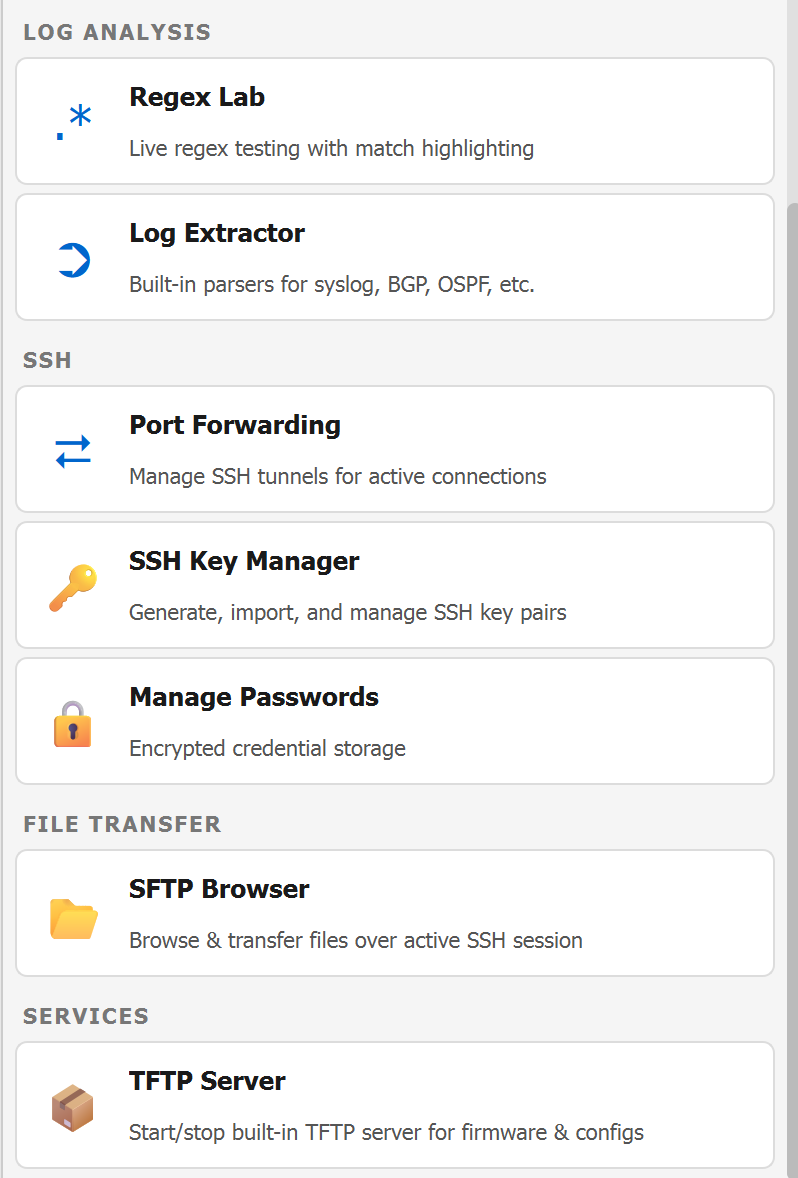
An RFC 1350-compliant TFTP server in a dockable panel. Configurable root directory, port, and bind address. Transfer table and log view for monitoring activity. Path traversal protection built in. Essential for firmware upgrades and configuration pulls on network equipment.
Drag-and-Drop Transfer
Drop files directly onto a terminal session. For SSH sessions, choose between SFTP upload (with remote directory prompt) or Zmodem send. No menus, no dialogs — just drag and drop.
ASCII Transfer
Send and receive plain ASCII files for configuration deployment and output capture.
Scripting & Automation
Expect Engine
Full expect-style scripting with pattern matching and automation. Write scripts that wait for prompts, send commands, handle branching, and automate repetitive sequences across network devices and servers.
Python Scripting
Scripts with a #!python shebang run as Python with access to the session context. Use the expect engine for simple automation and Python for anything more complex.
Script Editor
A syntax-highlighted in-app editor with a built-in runner. Write, test, import, and export scripts without leaving the application. Launch with F5 or Ctrl+Shift+S.
Script Recorder
Record your keystrokes into a script with Ctrl+Shift+R. Replay it later or edit the generated script to fine-tune the automation.
Triggers
Define pattern-based triggers that fire automatically when matching text appears in terminal output. Use triggers for auto-responses, alerts, highlighting, or launching scripts on specific events.
Login Scripts & Auto-Logon
Assign scripts that run automatically on connect. Auto-logon detects username and password prompts and fills credentials from saved profiles. Post-connect remote commands execute after authentication completes.
Paste Delays
Configurable per-character and per-line delays when sending text to sessions. Prevents buffer overruns on devices that can't handle full-speed input.
Logging
Session Logging
Log terminal output to file with ANSI escape stripping for clean, readable log files. Start logging manually, automatically on connect, or from the command line with --log.
Log Rotation
Rotate logs at midnight, by file size, or both. Old logs are renamed with timestamps so nothing is overwritten.
Filename Templates
Dynamic log filenames with parameter substitution: {user}, {host}, {port}, {date}, {time}, {datetime}, {type}. Organize logs by session, date, or connection type without manual file management.
Custom Log Messages
Configurable connect and disconnect messages written to the log. Record when sessions opened and closed with whatever context your audit process requires.
Security & Credentials
Credential Vault
An AES-encrypted vault unlocked with a master password. Session credentials are stored encrypted on disk — never in plaintext. Named credential profiles can be mapped to multiple sessions for consistent access management.
SSH Key Management
Generate RSA and Ed25519 key pairs, import existing keys, convert between formats, and upload public keys to servers. OpenSSH certificate files are auto-loaded alongside private keys for certificate-authority environments.
Host Key Verification
Graphical host key manager for viewing, importing, exporting, and deleting known host fingerprints. First-connect prompts show the full fingerprint for manual verification.
Session Locking
Password-protect any session with Ctrl+Alt+L. Locked sessions prevent typing and cannot be closed until unlocked. Useful for stepping away from an active session without disconnecting.
In-Session Credential Caching
Passwords and passphrases are cached in memory for the duration of the app session. Reconnecting to the same host auto-fills credentials without re-prompting.
Anti-Idle
Periodic keep-alive packets prevent idle disconnections on SSH and Telnet sessions. Configurable per session.
Network Tools
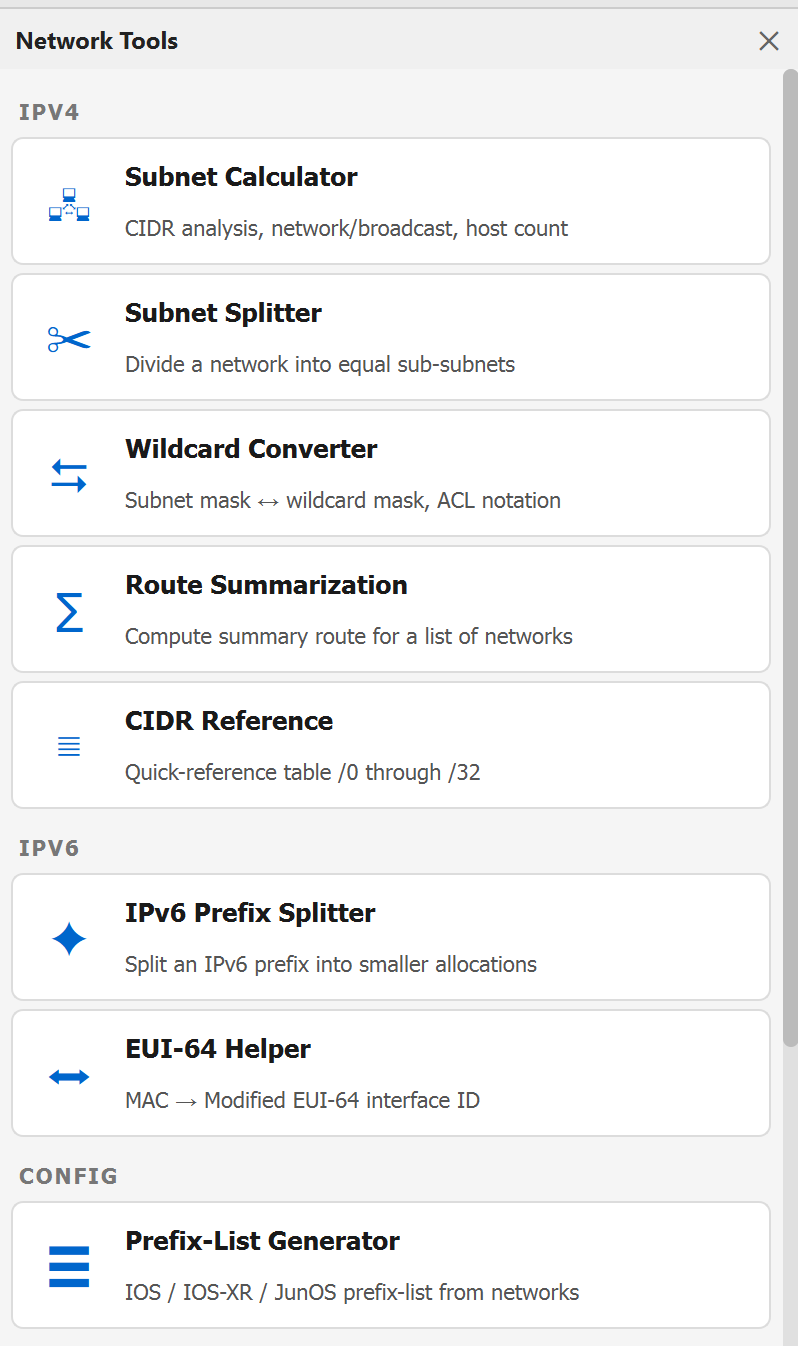
A built-in toolkit under the Network menu for the calculations, conversions, and generators that network engineers reach for constantly.
IPv4
- Subnet Calculator — enter an address and mask, get network, broadcast, host range, and usable count
- Subnet Splitter — divide a network into smaller subnets by count or prefix length
- Wildcard Converter — convert between subnet masks and wildcard masks
- Route Summarization — find the shortest summary route for a list of networks
- CIDR Reference — quick-reference table of CIDR prefixes, subnet masks, and host counts
IPv6
- IPv6 Prefix Splitter — split an IPv6 prefix into smaller allocations
- EUI-64 Helper — generate EUI-64 interface identifiers from MAC addresses
Configuration
- Prefix-List Generator — build prefix-list statements from a list of networks
Log Analysis
- Regex Lab — test and refine regular expressions against sample text with live match highlighting
- Log Extractor — pull structured data from log output using patterns
SSH Tools
- Port Forwarding Manager — view and manage active SSH tunnels across sessions
- Port Forwarding Wizard — step-by-step setup for local, remote, and dynamic tunnels with traffic-flow diagrams
- SSH Key Manager — generate, import, convert, and manage SSH key pairs
- Credential Manager — access the credential vault for saved session passwords and profiles
Keyboard & Input
Keyboard Mapping
Per-session key mappings with named profiles. A graphical keyboard editor shows the full layout with color-coded indicators for mapped keys. Click a key to assign an action. Export and import .keymap.json files to share configurations between machines.
Emacs Mode
Alt-as-Meta key mode sends ESC+key for Alt combinations. Enable globally in Preferences for Emacs-native key bindings across all sessions.
Appearance & Display
Themes
Light and dark UI themes with live toggle — no restart required. On Windows 10/11 the title bar darkens to match. System theme detection follows your OS preference automatically.
Color Schemes
Ten built-in terminal color palettes: Default Dark, Default Light, Solarized Dark, Solarized Light, Dracula, Gruvbox Dark, Nord, Monokai, Tomorrow Night, and Cisco Console. A GUI theme editor lets you rename, duplicate, and live-preview custom palettes. Themes are portable JSON files.
Alpha Transparency
Adjustable window opacity from 20% to 100% with live preview. Set in Preferences → Appearance.
MDI Wallpaper
Set a background image on the canvas. Scales cleanly across resize, tile, and cascade operations.
Font Scaling
Zoom in, zoom out, and reset zoom on terminal text. Dynamic font sizing adapts to your display and preference.
Printing
- Print Screen / Selection — print terminal contents with monospace rendering and session info header
- Host-Based Printing — pass-through printing via MC5/MC4 escape sequences from remote hosts
AI Assistant
Persistent Dock
The AI assistant lives in a dockable panel on the right side of the window. Chat history persists across session switches and theme changes.
Two Providers
Supports Anthropic Claude and OpenAI GPT. Choose your provider, model, and API key in Preferences. You bring your own key — RockTerm never proxies your data through a third party. AI usage is billed directly by your chosen provider, not by Rock River Research.
Context-Aware
Right-click selected terminal output and send it to the assistant with recent scrollback. Context blocks are recorded in chat history so past conversations stay interpretable.
Quick Prompts
One-click Explain, Fix Error, and Summarize prompts. Copy Last copies the response to clipboard. Send to Terminal routes text into the active session behind a confirmation dialog. Rate limits and quota errors surface as friendly messages.
Entirely Opt-In
AI features are disabled by default. Nothing is sent to any external service unless you configure an API key and invoke the assistant. You control what context is shared.
Distribution & Platform
Microsoft Store
Signed MSIX package through the Microsoft Store. Automatic updates. Free trial with full functionality. One-time purchase — no subscription.
Command-Line Options
Launch sessions from the command line or scripts: --ssh, --telnet, --raw, --serial, --session NAME, with flags for username, password, key file, and log file.
Accessibility
Accessible names and descriptions on all major widgets — terminals, session tree, docks, and dialogs. Focus policies and screen reader hints for Section 508 compliance.
No Telemetry
RockTerm does not collect usage data, analytics, or crash telemetry. Your sessions, connections, and API keys stay on your machine. The only outbound traffic comes from the things you explicitly initiate.