Many network environments do not allow direct SSH access to internal servers. Instead, connections must pass through an intermediary — a bastion host (jump host), an HTTP proxy, or a SOCKS proxy. RockTerm supports all of these patterns and can chain multiple hops to reach deeply nested targets.
Jump Host / Bastion Host
The Concept
A bastion host (or jump host) is a hardened server placed in a DMZ or perimeter network that acts as a single point of entry for SSH access to internal infrastructure. All SSH traffic to internal servers flows through the bastion, which provides centralized logging, access control, and reduced attack surface.
A typical topology looks like:
Workstation --SSH--> Bastion (public IP) --SSH--> Internal Server (private IP)Configuring a Jump Host in RockTerm
RockTerm implements jump host connectivity using the same mechanism as OpenSSH's ProxyJump directive. This is more secure than agent forwarding because the SSH connection to the final destination is tunneled end-to-end through the bastion — the bastion never sees your authentication credentials for the internal server.
- Open the connection profile for the final destination (the internal server).
- Navigate to Connection > Proxy / Jump Host.
- Set Proxy Type to SSH Jump Host.
- Enter the bastion host's address, port, username, and authentication method.
- The Destination Host and Port fields should contain the internal server's address as reachable from the bastion (e.g.,
10.0.1.50port22). - Click Connect. RockTerm establishes the SSH session to the bastion, then tunnels a second SSH connection through it to the internal server.
This is equivalent to the following OpenSSH command:
ssh -J user@bastion.example.com user@10.0.1.50Or configured in ~/.ssh/config:
Host internal-server
    HostName 10.0.1.50
    User admin
    ProxyJump user@bastion.example.com
Authentication for the Jump Host
The bastion connection supports the same authentication methods as a direct connection: password, public key, or agent-based. You can configure separate credentials for the bastion and the final destination. For example:
- Bastion: key-based auth with
id_ed25519 - Internal server: different key or password auth
HTTP Proxy
In corporate environments, outbound SSH may be blocked by a firewall, but an HTTP proxy (typically running on port 8080 or 3128) may be available. RockTerm can tunnel SSH through an HTTP proxy using the HTTP CONNECT method.
Configuration
- Open the connection profile for the target SSH server.
- Navigate to Connection > Proxy / Jump Host.
- Set Proxy Type to HTTP.
- Enter the proxy server address and port (e.g.,
proxy.corp.example.com:8080). - If the proxy requires authentication, enter the username and password.
- Click Connect.
This is equivalent to using OpenSSH with ProxyCommand:
Host remote-server
    HostName server.example.com
    ProxyCommand connect-proxy -H proxy.corp.example.com:8080 %h %p
Requirements and Limitations
- The HTTP proxy must support the
CONNECTmethod for the target port (usually port 22 or 443). - Many corporate proxies restrict
CONNECTto port 443 only. If port 22 is blocked, ask your server administrator to run SSH on port 443, or use an SSH server that listens on both ports. - Proxy authentication supports Basic and NTLM methods. Kerberos proxy auth is not currently supported.
SOCKS Proxy
SOCKS proxies (versions 4, 4a, and 5) provide a more general-purpose tunneling mechanism than HTTP CONNECT. SOCKS5 also supports UDP and authentication.
Configuration
- Open the connection profile for the target SSH server.
- Navigate to Connection > Proxy / Jump Host.
- Set Proxy Type to SOCKS4 or SOCKS5.
- Enter the SOCKS proxy address and port (e.g.,
socks.example.com:1080). - For SOCKS5, enter username and password if required.
- Click Connect.
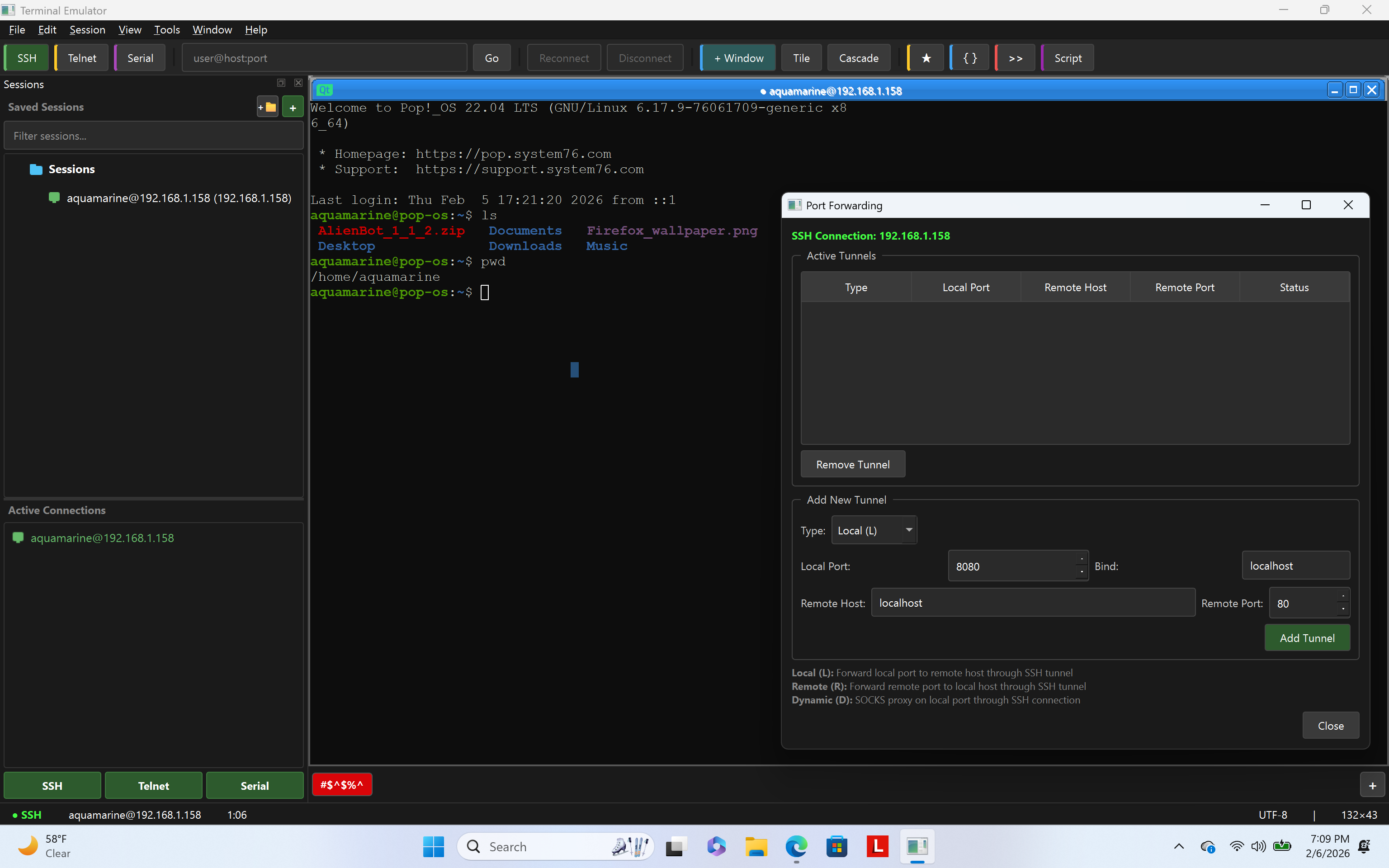
Dynamic SOCKS Proxy via SSH
A common pattern is to create a SOCKS proxy using an existing SSH connection. For example, if you have SSH access to an external server, you can create a local SOCKS proxy and route RockTerm connections through it:
ssh -D 1080 -f -N user@external-server.example.comThis binds a SOCKS5 proxy on localhost:1080. Configure RockTerm to use 127.0.0.1:1080 as a SOCKS5 proxy, and all connections will be routed through external-server.
Chained Connections (Multiple Hops)
Some environments require passing through two or more intermediate hosts to reach the final destination. For example:
Workstation --> Bastion A (DMZ) --> Bastion B (Management VLAN) --> Target ServerConfiguring Multi-Hop in RockTerm
RockTerm supports chaining multiple jump hosts:
- Open the connection profile for the final destination.
- Navigate to Connection > Proxy / Jump Host.
- Set Proxy Type to SSH Jump Host.
- In the Jump Host field, enter a comma-separated list of intermediate hosts in order:
user1@bastion-a.example.com,user2@bastion-b.internal. - Click Connect. RockTerm will chain the connections in sequence.
This is equivalent to:
ssh -J user1@bastion-a.example.com,user2@bastion-b.internal user3@target-serverOr in ~/.ssh/config:
Host target-server
    HostName 10.0.2.100
    User user3
    ProxyJump user1@bastion-a.example.com,user2@bastion-b.internal
Authentication Across Hops
Each hop can use independent authentication. RockTerm will prompt for credentials for each hop in sequence. For key-based auth across all hops, ensure your public key is deployed to each intermediate host and the final destination.
Combining Proxy Types
In complex environments, you may need to combine proxy types. For example, you might need to go through a corporate HTTP proxy to reach an external bastion, and then jump through that bastion to an internal server:
Workstation --> HTTP Proxy (corp) --> Bastion (cloud) --> Internal ServerTo configure this in RockTerm:
- Create a connection profile for the bastion that uses the HTTP proxy.
- Create a connection profile for the internal server that uses the bastion as a jump host.
Troubleshooting
Connection Through Jump Host Fails
- Verify you can connect to the bastion directly first.
- From the bastion, verify you can reach the internal server:
ssh user@10.0.1.50. - Check that the bastion allows TCP forwarding:
AllowTcpForwarding yesinsshd_config. - Some hardened bastion configurations disable non-interactive forwarding. Check for
PermitOpenrestrictions insshd_config.
HTTP Proxy Returns 403 or Connection Reset
- The proxy likely blocks
CONNECTto port 22. Try connecting to an SSH server on port 443. - Check if proxy authentication is required.
- Review proxy logs (if you have access) for the specific deny reason.
Slow Performance Through Multiple Hops
Each hop adds latency. For multi-hop connections, the total latency is the sum of all individual hops. If performance is unacceptable:
- Reduce the number of hops where possible.
- Enable SSH compression in RockTerm (Connection > SSH > Enable Compression) to reduce bandwidth on slow links.
- Consider using a VPN to provide direct access and eliminate intermediate hops.
Still need help?
If you're still experiencing issues, contact us or email support@rockriverresearch.com.